
Nano Banana Video: turn any photo or prompt into a short AI videoCreate a Video

Mode

Image

Model

Default. 4–10 s, up to 4K, up to 7 reference images.

0/2000

Motion ideas

Nano Banana changes your photo as asked, then the video starts from the edited photo. Adds … credits. Leave empty to animate the photo as it is.

Aspect Ratio

Auto picks the supported ratio closest to your image.

Duration
Quality
How to get a good result
  • Use a sharp image with one clear subject.
  • Describe one simple motion: what moves and how the camera moves.
  • Short, concrete prompts work better than long lists of effects.

AI video can get faces, hands and text wrong. Check the result before you use it.

Sign in to see your balance

Nano Banana Image to Video

Nano Banana image to video: upload a photo, say how it should move and see the credit cost. Generation opens soon; sign in to get an email when it does.

Example

An example video. Upload an image to make your own.

Examples

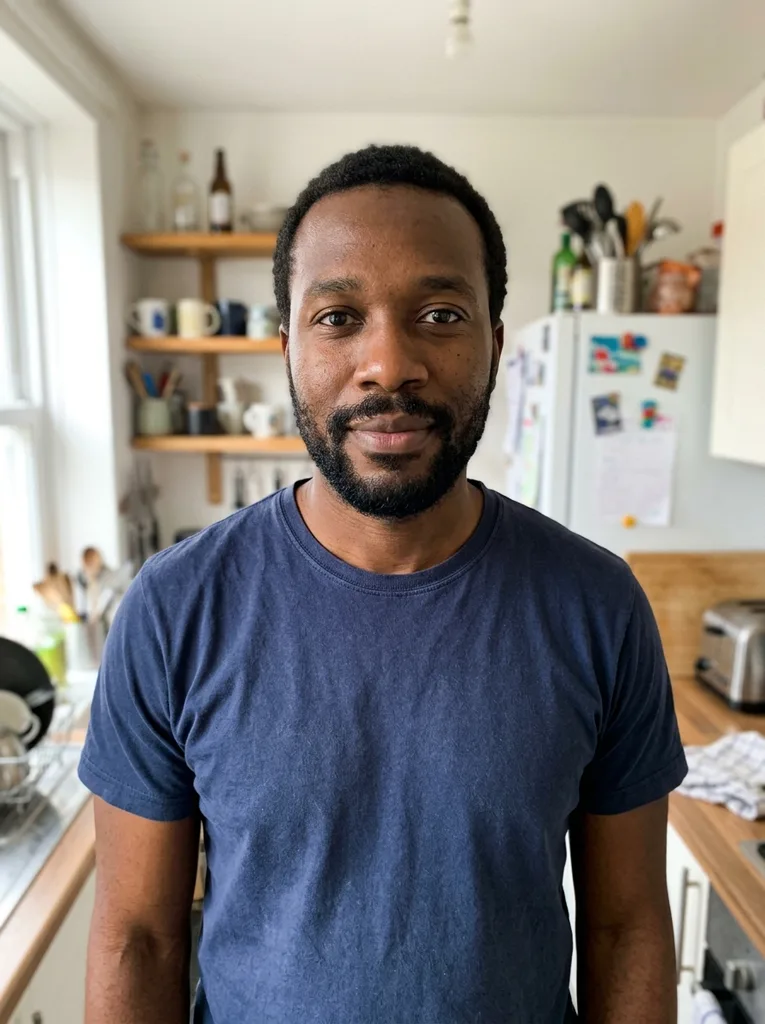
Original photo: Nano Banana image to video: a selfie animated into a clip of the man laughing as the camera pushes inBefore
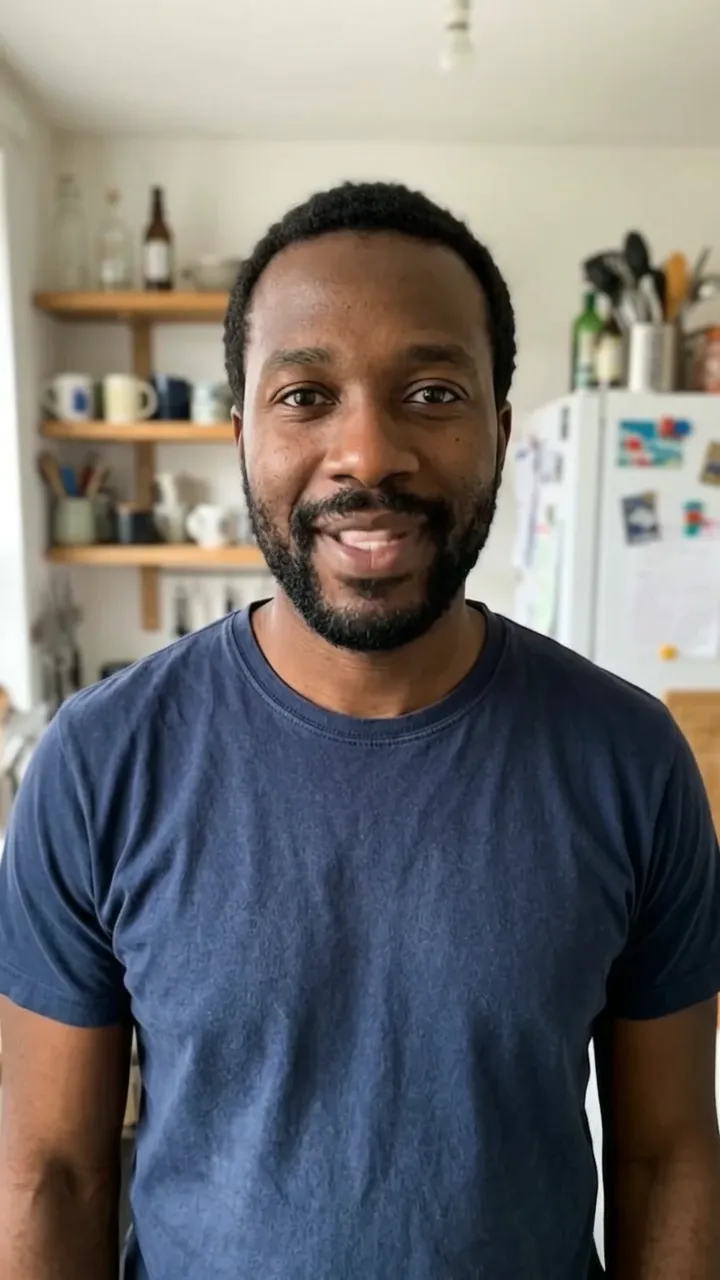
Nano Banana Image to Video result: Nano Banana image to video: a selfie animated into a clip of the man laughing as the camera pushes inAfter

How to animate a photo with Nano Banana

Three steps from a still photo to a short MP4.

  1. 1

    Add your photo

    Drag in or upload a JPG, PNG, WebP or HEIC up to 10 MB, or press Try a sample image. Want a change first? Describe it in the Nano Banana edit field and the video starts from the edited photo. Photos with one clear subject animate most predictably.

  2. 2

    Describe one motion

    Say what moves and how the camera moves. One click fills in Slow push-in, Subtle movement or Gentle orbit, and you can keep editing the text. Prompts can run to 2,000 characters, but short ones are easier to judge.

  3. 3

    Pick settings, check the cost, download

    Choose the model, length, quality and aspect ratio. The credits show on the Generate button before you press it. Generation opens soon; once it does, play the finished clip and press Download.

Nano Banana image to video: tips before you generate

  • Start from a sharp photo with one clear subject; a busy frame gives the model more to get wrong.
  • Ask for one simple motion, such as a slow push-in or hair moving in the wind, not a chain of actions.
  • Keep the prompt short and concrete: what moves, and what the camera does.
  • Use the edit field only for a change you want in the first frame, like a new background or outfit; leave it empty to animate the photo as it is.
  • Pick 16:9 for wide clips or 9:16 for vertical ones, or Auto to match your photo; a photo of another shape may be cropped.
  • Upload only photos you have the right to use, and only of adults.
  • Watch the finished clip for faces, hands and text, which AI video can get wrong.

Why use this tool for Nano Banana image to video

Facts about how this tool works, not promises about the result.

  • Edit and animate in one run

    Nano Banana changes your photo first if you ask it to, then the video model animates the edited frame. You do not export, re-upload and start over, which is what a separate image tool and video tool would need.

  • The price is on the button

    The credits for your exact settings show before you press Generate, and that is what is charged. A changed price is refused, not billed.

  • Failed videos are refunded

    If a video fails, its credits come back automatically. If the Nano Banana frame was already made, its 8 credits stay spent and you can open that frame.

  • Clips up to 10 seconds, up to 4K

    Gemini Omni Flash offers 4, 6, 8 or 10 seconds from 360p to 4K. Veo 3.1 Fast offers 4, 6 or 8 seconds at 720p, 1080p or 4K. Both come with sound.

  • Leave and come back

    Status shows queued or generating with the elapsed time, not a made-up percentage. You can close the tab, and a signed-in video waits in My Creations to open, download or delete.

Frequently asked questions

No. Every video costs credits, and there are no free generations or free trial. The cost for your settings shows on the Generate button before you start.

Not yet. Credits are not on sale while payments are off. You can set up your photo, prompt and settings, and Generate offers a Notify me when it opens email signup.

Nano Banana is Google's image model, so it makes and edits the still. Here it can change your photo first, and a video model (Gemini Omni Flash or Veo 3.1 Fast) then animates it. This site is not affiliated with Google.

Download the image from wherever you made it, upload it here, describe the motion and press Generate. The image becomes the first frame of the clip. That is the whole Nano Banana image to video flow, with the optional edit step on top.

JPG, PNG, WebP and HEIC, up to 10 MB each. Sharp photos with one clear subject work best, and you can add a single image per run in this mode.

Gemini Omni Flash makes 4, 6, 8 or 10 second clips; Veo 3.1 Fast makes 4, 6 or 8. Choose 16:9 or 9:16, or Auto to follow your photo. There is no 1:1.

Yes, videos from both models come with model-generated sound. There is no sound switch, and you cannot choose music or voices or upload your own audio.

Yes, upload any photo you have the right to use, of adults only. The result is AI output, so compare it with the original before you share it. Press Try a sample image if you want to see the panel before using your own.

We claim no ownership of your videos. Commercial use depends on the terms of the model providers, so check those before you publish.

Your photo is only used to create your videos and is never used to train AI models. Images and prompts are processed by Google's models, which may keep them for a limited time. We delete your files on request.

Its credits come back automatically. If the Nano Banana edit had already produced a frame, only the video step is refunded and that frame can still be opened.

We have not measured a typical time, so we do not quote one. The status line shows queued or generating with the elapsed time, and you can leave the page and find the clip in My Creations.

No, running videos cannot be cancelled. Check the settings and the cost on the Generate button before you press it.