
Examples
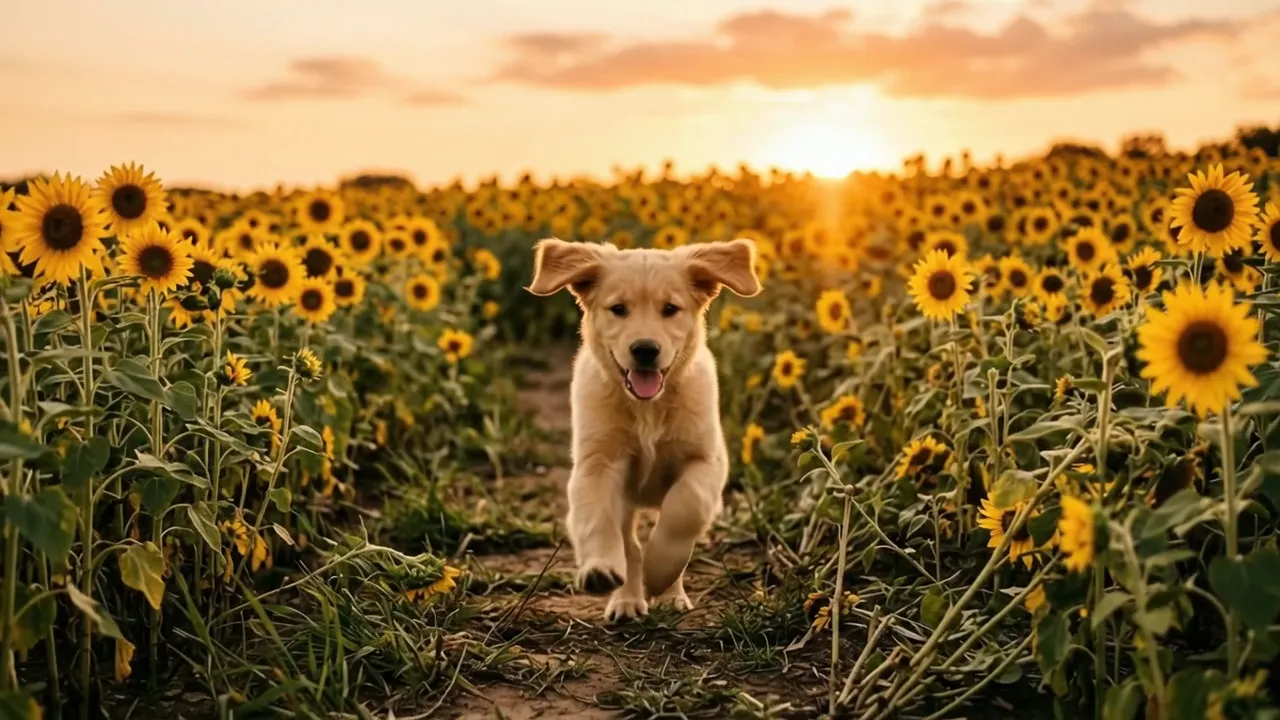
How Nano Banana text to video works in two steps
Nano Banana makes still images, and the video models here start from a still image. So a Nano Banana text to video run has two steps. Nano Banana draws the first frame from your prompt, then the video model animates that frame.
The panel shows both steps while the run goes on: Step 1 of 2 is the first frame, Step 2 of 2 is the video. The frame step adds a small amount to the total, for example 8 credits, and the Generate button shows the full price before you press it.
The result: the opening picture sets the starting look of the clip, its subject, setting, light and style, and the video model animates from that frame.
Prompts for Nano Banana text to video
A good prompt does two jobs at once. It describes a picture Nano Banana can draw, and it names a motion the video model can follow. The sunflower puppy example on this page started from one sentence: a golden retriever puppy running through a sunflower field at sunset.
Split your idea into a still and a move. The still is the subject, the place and the time of day. The move is what the subject does and what the camera does. The panel also has three motion ideas that fill the prompt box with one click, and you can edit the text afterwards: Slow push-in, Subtle movement and Gentle orbit.
Prompts can run up to 2,000 characters, but longer is not better. One scene, one subject and one camera move keep the first frame and the motion in agreement. AI video can get faces, hands and text wrong, so check the clip before you use it.
Nano Banana text to video prompt checklist
Five minutes of wording saves a run, because every run costs credits.
- Name one subject and say what it looks like, such as a golden retriever puppy or a street vendor in a yellow raincoat.
- Add the setting and the time of day, so the first frame has light and a background to work with.
- Describe one action in plain verbs: running, pouring, turning toward the camera.
- Choose one camera move, such as a slow push-in or a gentle orbit, and leave the rest still.
- Keep to one scene per prompt; a second scene in the same sentence usually fights the first.
- Skip readable text, signs and close hand work, which AI video often gets wrong.
- Pick 16:9 for a wide shot or 9:16 for a vertical clip before you press Generate, since text to video has no Auto ratio.
- Check the credits on the Generate button, and start with a shorter length if you are testing a new idea.
How to use Nano Banana text to video
Three steps from a sentence to a downloaded clip.
- 1
Write the scene
Open the Text to Video tab and type your prompt, or click a motion idea to fill it in. Say who or what is in the shot, where it is, and how it moves.
- 2
Choose length, quality and shape
Gemini Omni Flash offers 4, 6, 8 or 10 seconds, from 360p up to 4K, in 16:9 or 9:16. The default is 8 seconds at 720p. The credit price updates on the Generate button as you change these.
- 3
Generate and download
Generation opens soon: for now, Generate offers an email when it does. Once it is open, you watch the two steps run and can leave the page; the finished clip waits in My Creations as an MP4 with sound.