
Nano Banana Video: turn any photo or prompt into a short AI videoCreate a Video

Mode

Image

Model

Default. 4–10 s, up to 4K, up to 7 reference images.

0/2000

Motion ideas

Nano Banana changes your photo as asked, then the video starts from the edited photo. Adds … credits. Leave empty to animate the photo as it is.

Aspect Ratio

Auto picks the supported ratio closest to your image.

Duration
Quality
How to get a good result
  • Use a sharp image with one clear subject.
  • Describe one simple motion: what moves and how the camera moves.
  • Short, concrete prompts work better than long lists of effects.

AI video can get faces, hands and text wrong. Check the result before you use it.

Sign in to see your balance

Nano Banana Video

Nano Banana video from a photo or a prompt: set up the motion, length and aspect ratio now. Generation opens soon; sign in to get an email when it does.

Example

An example video. Upload an image to make your own.

Examples

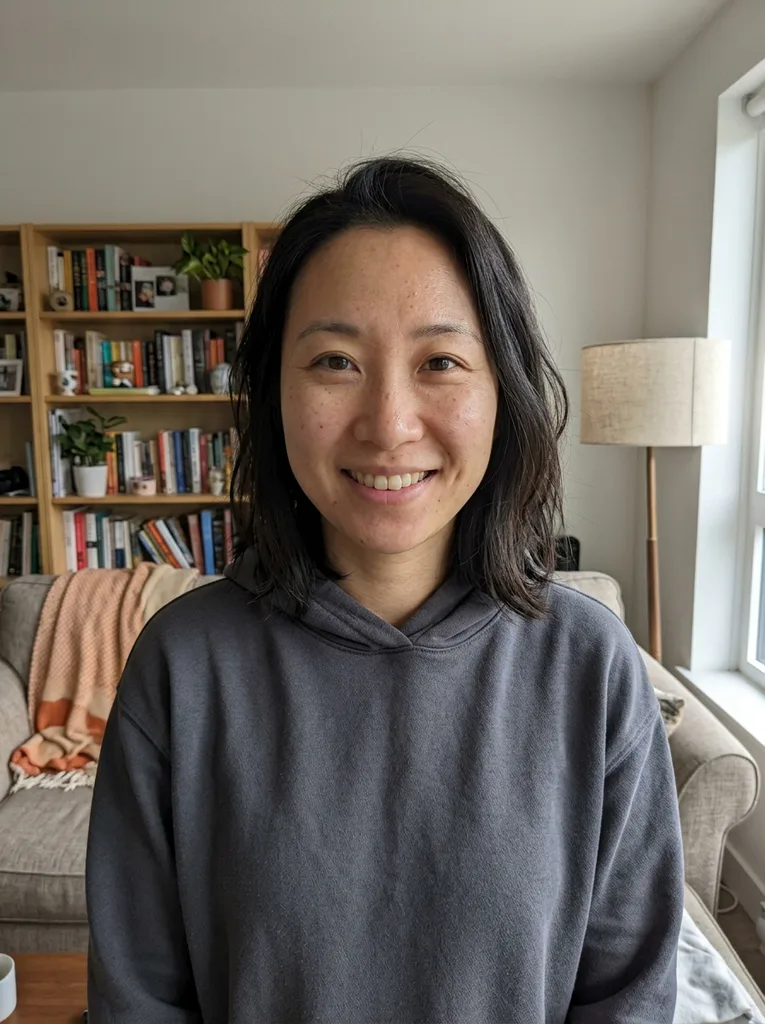
Original photo: Nano Banana video: a selfie edited by Nano Banana onto a rooftop at golden hour, then animated into a short clipBefore
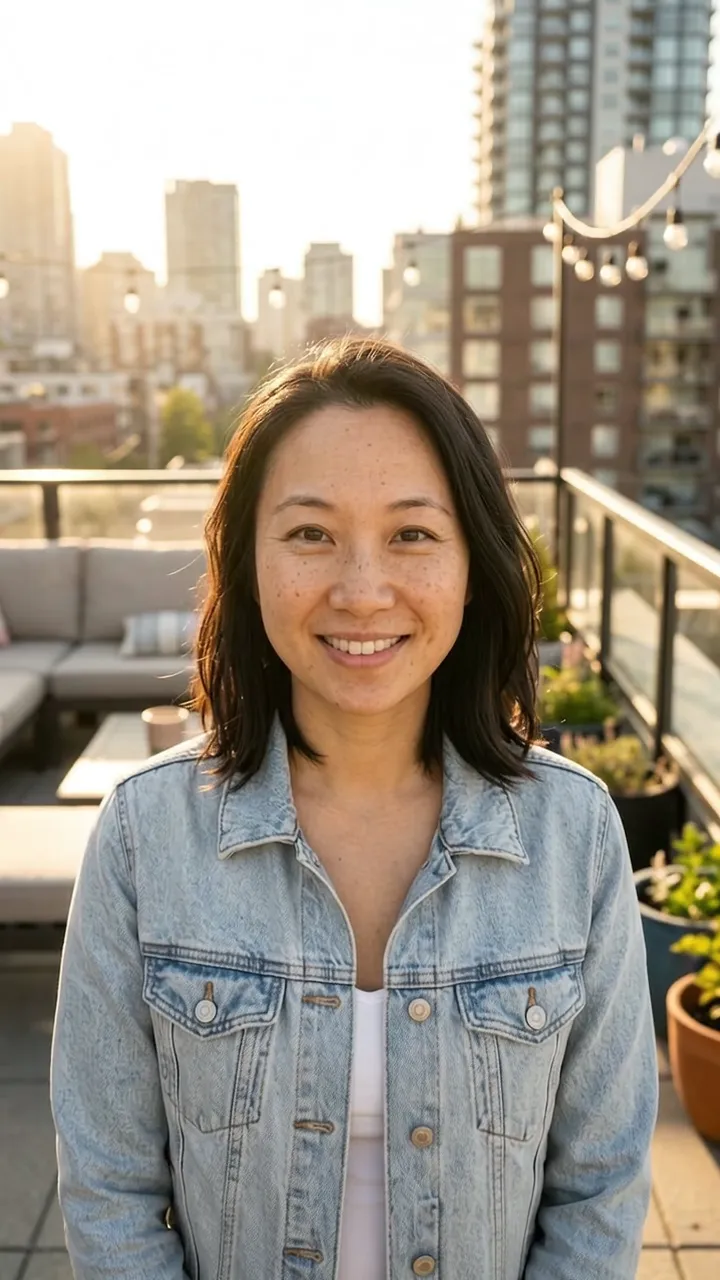
Nano Banana Video result: Nano Banana video: a selfie edited by Nano Banana onto a rooftop at golden hour, then animated into a short clipAfter
Nano Banana Video result

What is Nano Banana video?

Nano Banana draws and edits the picture, a Google video model animates it.

Nano Banana is Google's image model. It does not film anything itself, so a video model does the motion. From a prompt alone, Nano Banana draws the first frame, then Gemini Omni Flash or Veo 3.1 Fast animates it into a short MP4 with sound.

From your own photo, the Nano Banana step is optional. Leave the edit field empty and the clip starts on your photo as it is. Add an edit and Nano Banana changes the photo first: the rooftop example above is a selfie moved to golden hour, then animated.

This tool is not affiliated with Google. It uses their models through an API.

Made for

  • Social creators
  • Small shops
  • Designers
  • Marketers
  • Hobbyists
  • Storytellers

How to make a Nano Banana video

Three steps from a still to a downloadable nano banana video.

  1. 1

    Add a photo or write a prompt

    Drop in a JPG, PNG, WebP or HEIC up to 10 MB, or use the sample image. Want a different starting frame? Type an edit and Nano Banana changes the photo before the video begins.

  2. 2

    Describe the motion and pick settings

    Say what moves and how the camera moves, or click Slow push-in, Subtle movement or Gentle orbit. Then choose the model, length, resolution and 16:9 or 9:16.

  3. 3

    Check the credits, generate, download

    The Generate button shows the exact credit cost before you press it. Generation opens soon; once it does, the clip plays in the result area with a Download button for the MP4, and it waits in My Creations if you leave the page.

What a Nano Banana video is good for

Short clips where a still image needs a little life, from reels to concept previews.

  • Vertical posts

    Choose 9:16 for Reels, TikTok and Shorts. A portrait with a slow push-in makes a profile clip from one photo.

  • Product shots

    Turn a packshot into an orbit or a push-in for a shop page. Check labels and edges before you publish.

  • Photo edit, then motion

    Change the background or the light with Nano Banana, then animate the edited photo. One panel covers both steps.

  • Story openers

    Describe a scene and let Nano Banana draw the first frame. A 16:9 clip works as a title shot or a cutaway.

  • Concept previews

    Show a client how a scene could move before anyone shoots it. Eight seconds is enough for a mood.

  • Memories in motion

    Give an old family photo a gentle camera drift. Keep the prompt simple and compare the result with the original.

Costs, files and limits

What you pay, what we keep, and what the nano banana video tool does not do.

Nothing is free to generate

Every video costs credits and needs an account. Credits are not on sale yet: you can set up an image, prompt and settings now, and the panel offers a notify-me email when generation opens.

Your files

Your photo is only used to create your videos and is never used to train AI models. Uploads and finished videos are stored so you can return to them, and we delete them on request. Images and prompts also go to the Google models that make the video.

Failed runs are refunded

If a video fails, its credits come back automatically. When Nano Banana already made the first frame, that frame's credits stay spent and you can still open the frame.

What it does not do

It makes one video per run, up to 10 seconds, in 16:9 or 9:16. It cannot edit or extend a video, take a video or audio upload, or sync lips to your own voice. You must be 18 or older.

Frequently asked questions

Not by itself: Nano Banana is an image model. Here it draws the first frame from a prompt, or edits your photo if you ask, then Gemini Omni Flash or Veo 3.1 Fast turns that frame into a short video with sound.

Add a photo or write a prompt, describe the motion, and choose length and aspect ratio; the Generate button shows the credit cost. Generation is opening soon, so for now Generate offers an email signup for when your nano banana video can be made.

No. Every video costs credits and requires an account, and credits are not on sale yet. You can prepare everything now and leave your email to hear when generation opens.

It depends on the model, length and resolution. For example, an 8 second 720p clip on Gemini Omni Flash is 113 credits, and a Nano Banana edit adds 8. Prices may change, and the Generate button always shows the current total.

Yes. Upload a JPG, PNG, WebP or HEIC up to 10 MB and the video starts from it. Leave the edit field empty to animate the photo as it is. Faces, hands and text can come out wrong, so compare the clip with your original.

Gemini Omni Flash makes 4, 6, 8 or 10 second clips and Veo 3.1 Fast makes 4, 6 or 8 seconds. Resolution goes up to 4K, and the aspect ratio is 16:9 or 9:16. A photo can also use Auto, which may crop it.

Yes, clips from both models come with sound that the model generates. There is no sound switch, and you cannot pick the voice or the music.

Yes. Describe the subject, the setting, the time of day and one camera move. Keep it to one scene, up to 2,000 characters. Nano Banana draws the first frame, then the video model animates it.

Yes. Reference to Video takes several images of the same subject or style plus a prompt: up to 7 with Gemini Omni Flash, or 3 with Veo 3.1 Fast. This mode skips the Nano Banana image step.

Finished videos download as MP4 files, from the result area or from My Creations.

No, the site adds no watermark to your video.

Your photo is only used to create your videos and is never used to train AI models. Photos and videos are stored so you can return to them and we delete them on request. The Google models behind the tool may keep them for a limited time.

We claim no ownership of your videos, but we make no promise about commercial use. That depends on the terms of the model providers, so read them before you publish a clip as an ad.

It runs in the browser on desktop and phone, so there is nothing to install. Your draft is kept across sign-in, and finished videos wait in My Creations.